
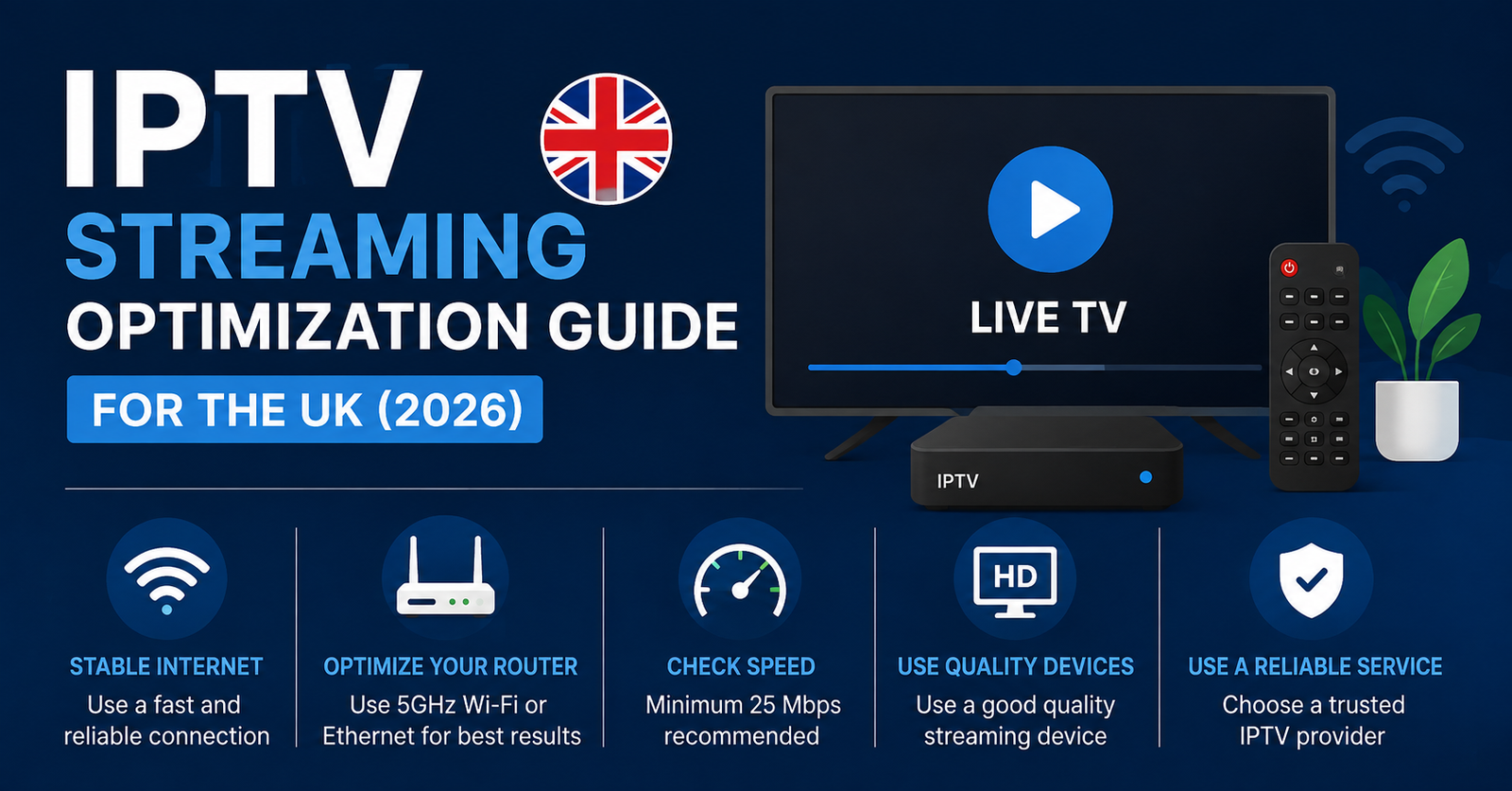
Getting smoother playback starts with three things: a stable connection, the right device settings and a player that suits your hardware. This IPTV streaming optimization guide walks through each one in order, starting with the network changes that make the biggest difference, then moving to device and app settings, and finally to the habits that keep a service running reliably over weeks and months rather than just on day one.
What Actually Slows Down IPTV Streaming
Buffering rarely has one single cause. It is usually a mix of connection stability, device processing power, app configuration and, sometimes, the source stream itself. Before changing anything, it helps to separate these categories because the fix for a weak Wi‑Fi signal is completely different from the fix for an underpowered streaming box.
Most households notice problems during peak evening hours, when several devices share the same router and background downloads or updates are running unnoticed. A stream that looks perfect at 2pm can behave very differently at 8pm on the same connection.
Start With the Connection, Not the App
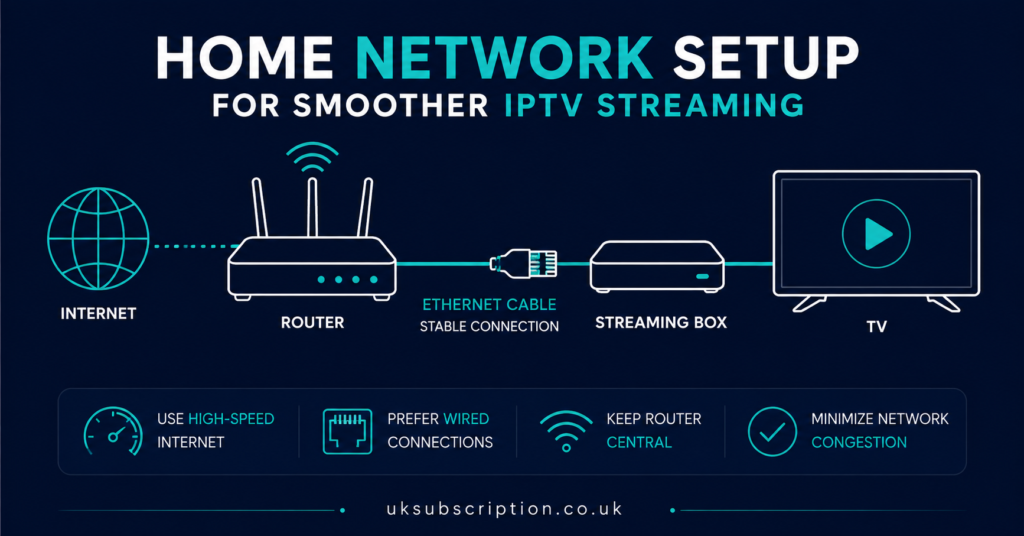
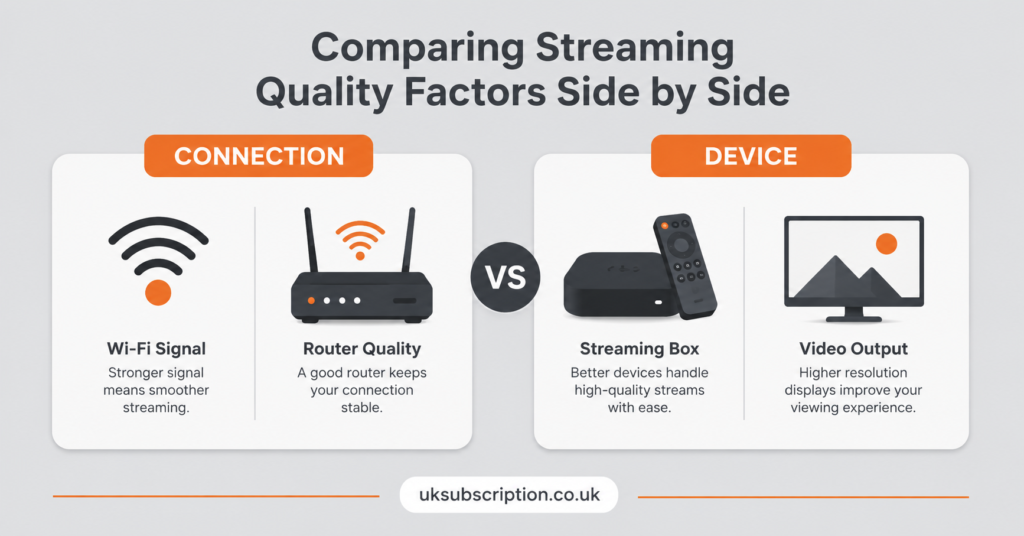
Wired Ethernet consistently outperforms Wi Fi for IPTV because it avoids interference from walls, neighbouring networks and other 2.4GHz devices. If running a cable to your TV or box is not practical, moving the router closer to the main viewing room, or adding a mesh extender, usually helps more than any in app setting.
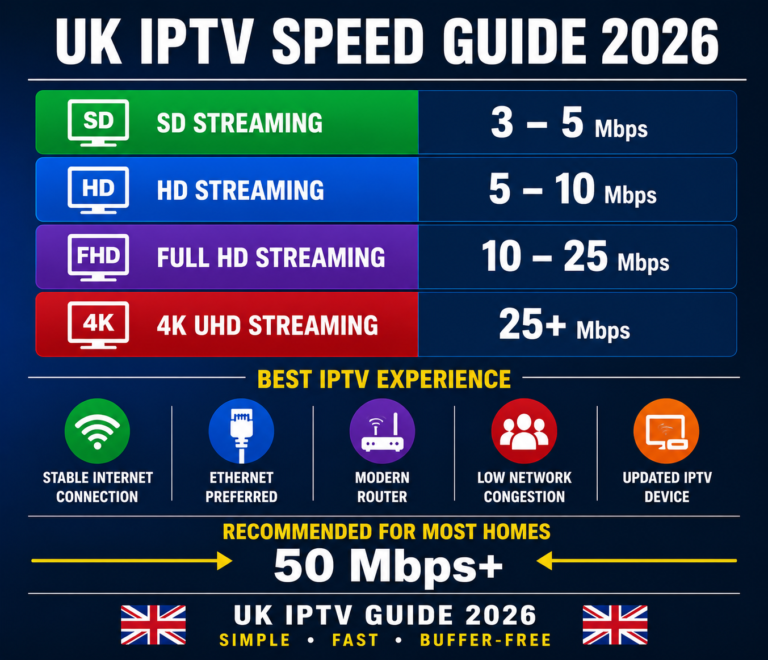
Check your actual upload and download speed at the device you stream from, not just at the router. A phone test in another room does not reflect what your Firestick or Smart TV app is actually receiving. For a full breakdown of the numbers that matter for different resolutions, the UK IPTV speed guide covers realistic bandwidth targets for HD and 4K viewing.
Pro tip: Pause any background downloads, cloud backups or console updates before an evening of viewing. These quietly consume bandwidth without any obvious warning on the TV screen.
IPTV Streaming Optimization Guide: Device and Player Settings
Once the connection is solid, the next variable is the device itself. Older Firestick models, budget Android boxes and some Smart TV apps struggle with high-bitrate 4K streams even on a fast connection, simply because the hardware cannot decode video fast enough.
A few practical adjustments make a real difference:
- Close background apps before opening the IPTV player, especially on Fire TV and Android boxes with limited RAM.
- Match the player’s buffer setting to your connection. A slightly longer buffer trades a few seconds of start up delay for fewer mid stream freezes.
- Update the player app itself. Older versions sometimes mishandle certain stream formats that newer builds decode correctly.
- If a channel repeatedly stutters, try a lower quality version of the same channel if the IPTV reseller Panel provider offers one, rather than forcing 4K on a connection that cannot sustain it.
Choosing a Player That Matches Your Device
Not every IPTV player behaves the same way on the same hardware. Some are built for lighter processing loads, others prioritise EPG features and channel organisation over raw performance. If you are still deciding which app to use on a Firestick, the Firestick IPTV player comparison breaks down the trade offs between the more common options.
For Firestick specifically, the installation steps themselves can affect performance too, since sideloading through the wrong method can leave outdated files behind. The Firestick setup guide walks through a clean installation from scratch, which is worth doing if you inherited an old configuration or the app has been reinstalled multiple times.
Diagnosing the Problem Before You Blame the Provider
It is tempting to assume buffering means the provider’s servers are overloaded, and sometimes that is true. But before switching services, it helps to work through the possibilities in order, since network and device issues are far more common than most subscribers expect.
| Symptom | Likely Cause | Next Action |
|---|---|---|
| Buffering only in the evening | Peak hour network congestion | Test wired connection during the same hours |
| Buffering on one device only | Device hardware or app version | Update app, restart device, try alternate player |
| Buffering on every device at once | Home connection or ISP issue | Run a speed test at the router itself |
| One channel buffers, others are fine | Source stream quality | Try a lower resolution version if offered |
If every symptom points back to your own network and hardware rather than a single channel, the fix usually sits at home rather than with the provider. For a deeper troubleshooting sequence, including router level checks, the buffering and freezing guide covers the process step by step.
Pro tip: Restart the router and the streaming device together, not just one of them. A stale DHCP lease on the router side can cause intermittent drops that look like an app problem.
Where a VPN Fits Into Optimization
A VPN is sometimes recommended for IPTV, mainly for privacy on public or shared networks rather than as a way to improve speed. In most cases a VPN adds a small amount of latency because traffic is routed through an additional server. If you choose to use one, pick a server location close to your actual location and test playback with and without it before assuming it is helping. The VPN for IPTV guide explains when a VPN genuinely helps and when it just adds overhead.
Subscriber View: What You Can Control
As a subscriber, your realistic optimization levers are the connection, the device, the app and how you use them. You cannot fix a genuinely overloaded server on the provider’s side, but you can rule out everything on your end first, which also gives you a clearer, more specific report if you do need to contact support.
Before assuming a provider is unreliable, check pricing clarity, refund terms and support responsiveness against what was advertised, covered in the secure IPTV buying guide. A provider that is upfront about device limits, fair use policies and realistic streaming quality is easier to troubleshoot with, because expectations are set correctly from the start.
Common Mistakes That Undo Good Optimization Work
A few habits quietly cancel out the improvements above:
| Mistake | Better Approach |
|---|---|
| Running IPTV over Wi Fi with several other streaming devices active | Prioritise the IPTV device with wired Ethernet where possible |
| Forcing 4K on every channel regardless of connection strength | Match resolution choice to your actual sustained speed |
| Ignoring app updates for months | Check for player updates on a regular basis |
| Sharing login credentials across many extra devices | Stay within the connection limit stated in your plan |
Illustrative Example: Comparing Two Providers
To see how these principles apply in practice, consider an illustrative example provider called Skip This. Like any IPTV service, its actual streaming performance would depend on server load, the subscriber’s own connection, device choice and how many concurrent streams the plan allows, not on marketing claims alone. The same evaluation questions apply regardless of which provider is being considered: what device limits are stated, what happens during peak hours, and what the refund and support terms actually cover.
Reseller View: Optimization Affects Support Load
For UK IPTV resellers, unresolved playback issues are one of the most common sources of support tickets. Encouraging customers to check their own connection and device settings first, using a simple troubleshooting checklist, reduces the number of escalations that turn out to be router or app problems rather than panel or credit issues. Keeping clear documentation on common fixes, and knowing when to escalate to the parent panel provider instead of guessing, protects both response times and customer trust.
When Optimization Alone Is Not Enough
If wired Ethernet, updated apps, sensible resolution choices and a stable router still leave regular buffering, the issue may genuinely sit with the source stream or server capacity rather than anything on your end. At that point, comparing plans or providers on published channel lists, device support and refund terms makes more sense than repeating the same troubleshooting steps. The premium IPTV subscription guide explains what tends to separate consistently reliable services from ones that only perform well in short bursts.
Visible FAQ Section
Does a wired connection really make that much difference?
Yes, in most homes. Wi Fi is affected by walls, distance from the router and interference from other devices, while Ethernet gives a more consistent signal, which matters more for live streaming than for browsing or downloads.
Will a more expensive streaming box automatically fix buffering?
Not on its own. A stronger device helps with decoding higher bitrates, but it will not compensate for a weak or congested network connection.
Is it normal for one channel to buffer while others play fine?
It can happen, and usually points to that specific source stream rather than your setup, especially if every other channel and device performs normally at the same time.
Should I always use the highest resolution available?
Not necessarily. If your connection cannot sustain the bitrate a 4K stream needs, choosing a lower resolution version, where offered, often plays more smoothly than a 4K stream that keeps stalling.
Does using a VPN improve IPTV streaming speed?
Generally no. A VPN adds a routing step that can introduce slight latency, though some subscribers use one for privacy reasons rather than performance.
How do I know if the problem is my provider rather than my setup?
If every device on your network shows the same issue at the same time, and a wired connection does not help, it is more likely to be a provider or source stream issue than a home network problem.
Conclusion
The core of any IPTV streaming optimization guide comes down to working through the variables in order: connection first, device and player settings second, and provider or source stream last. Most buffering problems trace back to Wi Fi congestion, an underpowered device or an outdated app rather than the service itself, which is why testing your own setup thoroughly saves time before assuming a provider is at fault. Where problems persist after ruling out your own network and hardware, comparing published plan details and support terms is a more useful next step than repeating the same fixes.
Quick Troubleshooting Checklist
- Test with a wired Ethernet connection before blaming the app or provider
- Restart the router and streaming device together, not separately
- Update your IPTV player app to the latest version
- Close background apps and pause other downloads during peak viewing hours
- Try a lower resolution stream if 4K keeps stalling on your connection
- Check whether the issue affects one device, one channel, or the whole household
- Confirm you are within your plan’s connection limit before adding extra devices