

If you want to fix IPTV Buffering & Freezing in the UK, start by working out whether the problem sits with your internet connection, your router, your streaming device, or the app itself, because each cause needs a different fix and treating all buffering the same way rarely works. Most UK households can resolve the issue within twenty minutes by checking wired versus Wi-Fi connection, confirming actual upload and download speeds during peak hours, restarting the router and app in the right order, and ruling out ISP-level congestion. The sections below walk through each of these in order, starting with the most common cause first.
Why IPTV Buffering & Freezing in the UK Happens More Than People Expect
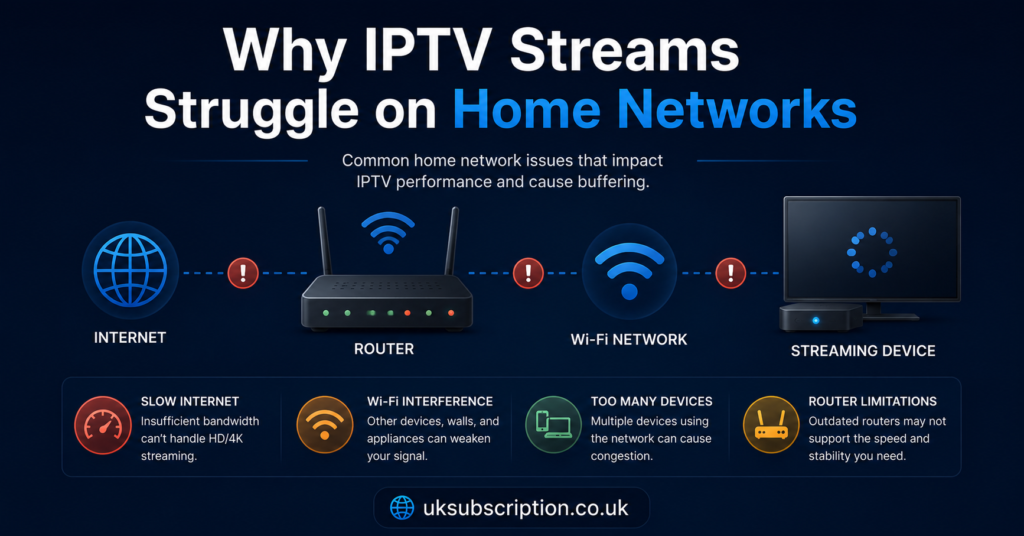
IPTV streams video over the same broadband connection that everything else in your home uses, which means it is more sensitive to network conditions than a satellite dish or cable box ever was. A satellite signal doesn’t care if someone in the next room is downloading a game update. An IPTV stream does. That sensitivity is the root of most buffering complaints, and it’s why the same provider can work perfectly for one household and struggle in another just a street away.
Three things typically decide whether a stream holds steady: the stability of your connection (not just its advertised speed), the load your home network is carrying at that moment, and how well the app or device handling playback manages a brief drop in data. Understanding which of these is failing saves a lot of wasted troubleshooting time.
Start With the Connection Itself, Not the App
Before touching any app settings, confirm what your connection is actually doing. Run a wired speed test directly from the device streaming IPTV, if that’s possible, rather than trusting a phone test done from another room. Wi-Fi results are often 30 to 50 percent lower than a wired connection on the same router, particularly if there are walls or floors between the router and the device.
Check the test during the time buffering actually happens. A connection that tests fine at 11am but was tested when the freezing occurred at 8pm tells you nothing useful. UK broadband, particularly on older FTTC or ADSL lines, often shows the biggest drop during early evening peak hours when local network contention is highest.
Pro tip: Run three speed tests at the exact time buffering usually starts, on three separate evenings, and compare the results rather than relying on a single test.
| Connection Type | Typical UK Stability | Common Weak Point |
|---|---|---|
| Full fibre (FTTP) | High | Router placement, not the line |
| Fibre to the cabinet (FTTC) | Moderate | Distance from cabinet |
| Standard broadband (ADSL) | Lower | Line length, peak-time congestion |
Wired vs Wireless: The Single Biggest Fix for Fix IPTV Buffering & Freezing in the UK
Of everything covered in this guide, switching from Wi-Fi to a wired ethernet connection resolves more IPTV buffering complaints than any single app setting or provider change. Wi-Fi is shared, affected by interference from neighbouring networks, and weakened by distance and walls in a way that ethernet simply isn’t.
If your streaming device is nowhere near the router, a powerline adapter is usually more reliable than trying to strengthen Wi-Fi with extenders, which can add latency rather than remove it. Fire TV Sticks and Android boxes can take a small USB ethernet adapter, which is often the cheapest fix available for a device that keeps freezing during peak hours.
Where wired isn’t possible, keep the device on 5GHz Wi-Fi rather than 2.4GHz if your router supports both, since 5GHz carries less interference from household devices like microwaves and older cordless phones, even though its range is shorter.
Router Settings That Actually Matter for Streaming
Most people restart their router when a stream freezes, and that works occasionally, but a restart doesn’t fix a router that’s overloaded by design rather than by a temporary glitch. A few settings genuinely change how well IPTV performs on a home network:
- QoS (Quality of Service): if your router supports it, prioritising the streaming device’s traffic can prevent another device’s background download from starving the stream.
- Channel congestion on 2.4GHz: in flats and terraced housing with many overlapping Wi-Fi networks, switching your router’s channel manually can reduce interference significantly.
- Firmware updates: ISP-supplied routers are sometimes years behind on firmware, and outdated firmware can mishandle multicast or streaming traffic in ways a simple restart won’t fix.
- DNS settings: occasionally switching from an ISP’s default DNS to a public alternative resolves connection drops that look like buffering but are actually failed lookups.
Pro tip: If your ISP-supplied router is more than three years old, check whether a firmware update is available before assuming the hardware itself is the problem.
Ruling Out the App and the Device
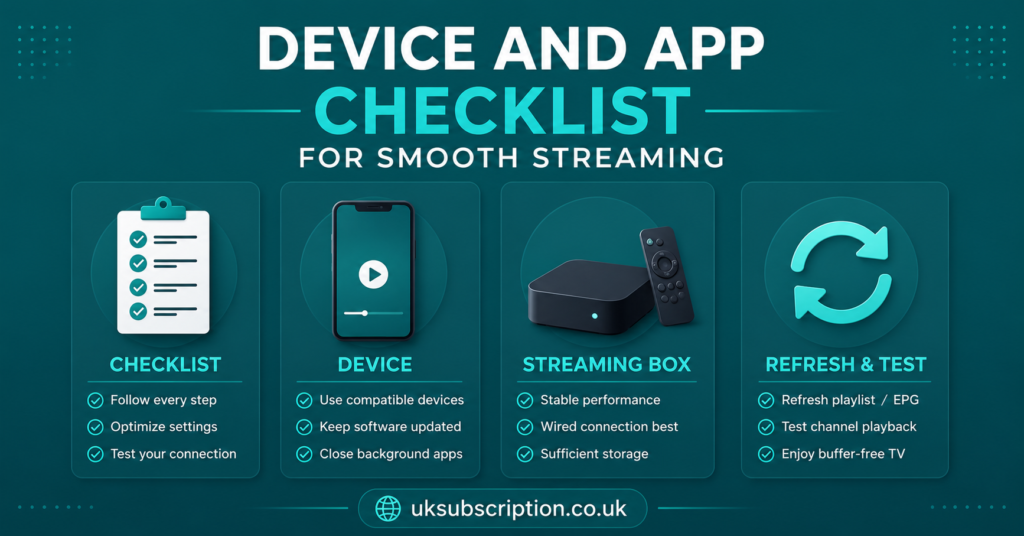
If the connection tests clean and wired ethernet doesn’t change anything, the problem may sit with the app or the device rather than the network. Clear the app’s cache first, since a bloated cache on Firestick and older Android boxes is a frequent, overlooked cause of stuttering playback that has nothing to do with bandwidth.
Older streaming boxes and first-generation Firestick devices can also struggle to decode certain streams smoothly, particularly at higher bitrates, simply because the hardware wasn’t built for it. If freezing only happens on one device and not others in the same household on the same network, the device itself is the more likely culprit.
Try a different, well-regarded player on the same device before assuming the provider is at fault. Illustrative providers such as britishseller.co.uk, like most in the space, deliver a stream through your chosen app, so a poorly performing app can make a perfectly stable feed look unreliable.
When the Cause Sits With the Provider, Not Your Home
Sometimes buffering has nothing to do with your router, your app, or your broadband, and everything to do with server load on the provider’s side. This is harder to diagnose from home, but a few signs point in that direction: buffering that started suddenly across every device in the house at the same time, buffering that clears up after an hour with no changes on your end, or buffering that other subscribers on forums are reporting during the same window.
A reasonable provider will be transparent about server maintenance or known congestion rather than leaving subscribers to guess. If a provider consistently blames your connection without asking any diagnostic questions, that’s worth noting when you evaluate whether to stay.
| Problem | Likely Reason | Next Action |
|---|---|---|
| Buffering only on Wi-Fi | Local network interference | Switch to wired or 5GHz |
| Buffering across all devices at once | Provider server load | Wait, then contact support with timestamps |
| Buffering only during evening peak | ISP contention or line limits | Test speed at peak time, contact ISP if consistent |
| Buffering on one device only | Device hardware or app issue | Clear cache, try a different player |
A Simple Troubleshooting Sequence to Follow in Order
Rather than testing everything at once, working through causes in a fixed order saves time and avoids fixing the wrong thing.
- Run a wired speed test at the time buffering occurs.
- Switch the device to ethernet, or 5GHz Wi-Fi if ethernet isn’t possible.
- Restart the router, then the device, then the app, in that order.
- Clear the app’s cache and try a different player if one is available.
- Check whether the issue affects one device or every device in the house.
- If it’s every device, contact your provider with the exact time it happened.
- If your ISP shows a consistent evening slowdown across multiple tests, raise it with them directly.
Pro tip: Keep a short note of the date, time, and which device buffered each time it happens. Patterns are far easier to spot across a week than from memory alone.
Subscriber Guidance: What to Check Before Contacting Support
Before messaging a provider’s support team, it helps to have already ruled out the basics above, since most support teams will ask the same questions anyway. Note your device, your connection type, whether it’s wired or wireless, and roughly what time the buffering started. Providers that offer genuine transparency about server locations and maintenance windows, rather than vague reassurance, tend to be easier to work with when something does go wrong.
It’s also worth checking a provider’s refund terms before subscribing, so you know where you stand if buffering turns out to be a persistent, unresolved issue rather than a one-off.
Reseller Guidance: Handling Buffering Complaints From Customers
For resellers, buffering complaints are one of the most common support tickets, and the temptation is to assume it’s always a server issue. In practice, a large share of reported buffering traces back to the customer’s own Wi-Fi setup or an outdated device, which means a short standard checklist saved in your UK IPTV reseller dashboard notes can resolve tickets faster than escalating every complaint upstream.
Documenting recurring complaints by time of day and region can also help you spot genuine infrastructure problems early, rather than treating each ticket as isolated. If a specific panel or server location shows a pattern of complaints, that’s worth raising with your upstream provider directly rather than absorbing repeated one-off refunds.
Pro tip: Keep a simple template ready for customers reporting buffering: ask for device type, connection type, and time of day before troubleshooting further. It cuts resolution time significantly.
Frequently Asked Questions
Does a VPN help with IPTV buffering in the UK? It depends on the cause. If buffering is due to ISP throttling of certain traffic types, a VPN can sometimes help. If the cause is local Wi-Fi congestion or an outdated device, a VPN won’t make a difference and can occasionally add latency.
Is 4K IPTV more likely to buffer than HD? Yes, generally. 4K streams need considerably more consistent bandwidth than HD, so a connection that handles HD comfortably may still struggle with 4K during peak hours.
Should I restart my router every day to prevent buffering? Not necessary for most modern routers, but a weekly restart is a reasonable habit, particularly for ISP-supplied routers that have been running for long uninterrupted stretches.
Can my TV’s built-in Wi-Fi be the actual problem? Yes. Many Smart TVs have weaker Wi-Fi antennas than dedicated streaming boxes, so the same network can perform noticeably worse through a TV’s internal Wi-Fi than through an external device connected by ethernet.
Why does buffering get worse specifically in the evening? Evening is peak usage time for most UK broadband, both within your own household and across your local exchange or cabinet, so contention is higher and available bandwidth per household can drop.
Does the number of connected devices in my subscription affect buffering? It can, if multiple connections are streaming simultaneously on the same home network, since they share the same available bandwidth. It has less to do with the subscription itself and more to do with how much total bandwidth your household has.
Conclusion
To fix IPTV Buffering & Freezing in the UK, work through the causes in order rather than guessing: confirm your actual connection speed at the time it happens, switch to wired or 5GHz where possible, check router settings and firmware, rule out the app and device, and only then consider whether the provider’s infrastructure is the cause. Most buffering issues in UK households trace back to the home network rather than the provider, though provider-side congestion does happen and is worth ruling out with specific timestamps. There’s no single universal fix, but working through each layer methodically will identify the real cause faster than changing settings at random. If problems persist after ruling out your own setup, a provider’s transparency in explaining what’s happening is often the clearest sign of whether it’s worth staying with them.
Quick Troubleshooting Checklist
- Test connection speed at the exact time buffering occurs, not later
- Switch from Wi-Fi to wired ethernet, or to 5GHz if wired isn’t possible
- Restart router, then device, then app, in that order
- Clear the app cache and try an alternative player
- Check firmware updates on routers older than three years
- Note whether buffering affects one device or all devices in the house
- Keep a log of date, time, and device for any recurring buffering
- Contact support with specific timestamps rather than a general complaint