

To Setup IPTV on Samsung & LG Smart TV, you install a compatible IPTV player from the TV’s own app store (or sideload it on older models), then enter your provider’s portal address, username, and password, or load an M3U playlist URL. Once the app connects, your channel list loads and you’re watching within a few minutes. The tricky part isn’t the concept, it’s that Samsung’s Tizen and LG’s webOS handle app installation differently from Android-based devices like Firestick, so the exact steps and available apps vary. This guide walks through both platforms separately, plus the errors people hit most often.
Why Samsung and LG Aren’t as Simple as a Firestick
Firestick and Android TV boxes run on an open operating system, so almost any IPTV app can be sideloaded onto them in a couple of minutes. Samsung’s Tizen and LG’s webOS are closed platforms built around their own app stores. That’s good for stability and bad for flexibility. You can’t sideload a random APK onto a Samsung TV the way you would on Android, and LG’s process for adding outside apps has changed more than once as the company has tightened its store policies.
This isn’t a flaw specific to any one provider or app. It’s simply how these two manufacturers have built their smart TV platforms, and anyone setting up IPTV needs to work within that structure rather than assume it behaves like an Android box.
Setting Up IPTV on a Samsung Smart TV
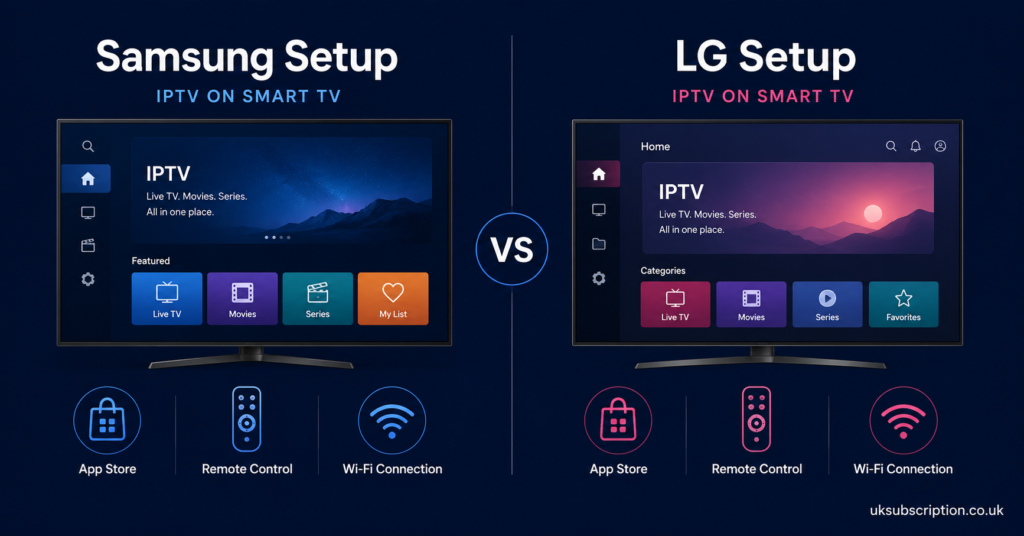
Most modern Samsung TVs (2018 models onward, running Tizen) have at least one IPTV-capable player already listed in the Samsung App Store, most commonly Smart IPTV or an equivalent M3U-based app. The general process looks like this:
- Open the Samsung App Store from the TV’s home screen and search for an IPTV player app.
- Install the app and open it. Most will display a MAC address or App ID on first launch.
- Register that MAC address or App ID with your provider, or enter the portal URL directly if the app supports it.
- Restart the app once the provider confirms your details are active.
- Your channel list and EPG data should populate within a minute or two.
Older Samsung models, particularly pre-2018 sets, may not support these apps at all, since Tizen versions before that point had limited third-party app support. If your TV is several years old, check its Tizen version before assuming the app will install.
Pro tip: Write down the exact MAC address shown in the app before contacting support. A single mistyped character is one of the most common reasons a portal fails to activate on the first attempt.
Setting Up IPTV on an LG Smart TV
LG’s webOS platform is stricter about what appears in its official store, so IPTV-specific apps are less commonly pre-listed than on Samsung. There are two realistic paths:
Using the LG Content Store: search for a generic IPTV or M3U player. Availability varies by region and by webOS version, so this isn’t guaranteed to work on every set.
Using a developer mode installation: LG allows a developer account to sideload apps onto compatible models, though this route requires creating a developer profile through LG’s own developer site and is more technical than the Samsung process. It’s a legitimate LG feature, not a workaround, but it does take longer and isn’t something every household wants to go through for a single app.
If neither route works cleanly on your specific model, a small streaming device such as a Firestick or Android TV box connected to the LG TV’s HDMI port is often the more practical fix, since it sidesteps webOS’s app restrictions entirely while keeping the same screen and remote experience.
What You’ll Need Before You Start
Regardless of the TV brand, a few things need to be ready before you open any app:
- A stable broadband connection, ideally over 15Mbps for reliable HD streaming and more for 4K.
- Your provider’s portal address, username, and password, or an M3U playlist link.
- The exact device MAC address if your app or provider requires device-based activation.
- A quiet check of whether your TV’s Tizen or webOS version is recent enough to support the app you’ve chosen.
Skipping any of these tends to be the reason setup drags on longer than it should. It’s rarely the app itself causing the delay, it’s a missing detail on one side or the other.
Common Connection Errors and What They Usually Mean
| Problem | Likely Reason | Next Action |
|---|---|---|
| App installs but shows no channels | Portal details entered incorrectly, or subscription not yet activated | Recheck the exact portal URL, username, and password with your provider |
| Buffering that comes and goes | Local WiFi congestion or insufficient broadband speed | Test wired Ethernet or a 5GHz WiFi band if the TV supports it |
| Connection error immediately on launch | Wrong protocol typed in the portal address (http instead of https, or vice versa) | Confirm which protocol your specific provider’s portal actually uses |
| App disappears after a firmware update | Tizen or webOS updates occasionally remove sideloaded or unlisted apps | Reinstall the app and re-enter your credentials |
Pro tip: If channels load but freeze after a few seconds, that’s almost always a bandwidth or WiFi interference issue rather than a problem with the app or the provider’s server, so start there before assuming the worst.
Choosing a Provider Worth Setting Up in the First Place
The setup steps above only matter if the service behind them is worth using. This is where it’s worth being deliberate rather than picking whichever result appears first in a search. A provider such as britishseller.co.uk is one example of the type of service people look at during this research phase, though the same evaluation standards should apply to any provider, not just this one.
| Good Sign | Warning Sign |
|---|---|
| Clear, published pricing with no hidden renewal terms | Prices only available after messaging support |
| A working free trial before any payment is asked for | Trial requires full payment upfront with a “refund promise” |
| Responsive support that answers setup questions directly | Vague or delayed answers to basic device compatibility questions |
| Transparent business information and contact details | No verifiable company details anywhere on the site |
Questions Worth Asking Before You Commit
- Which specific apps does the provider recommend for Samsung and LG, and are they tested on those platforms specifically?
- What is the refund policy if the service doesn’t work on your exact TV model?
- Is there a device or connection limit, and does it match how many TVs you actually plan to use?
- How is support contacted, and how quickly do they typically respond outside peak hours?
None of these questions have a universally right answer. What matters is that a provider answers them clearly rather than deflecting.
For Resellers Supporting Samsung and LG Customers
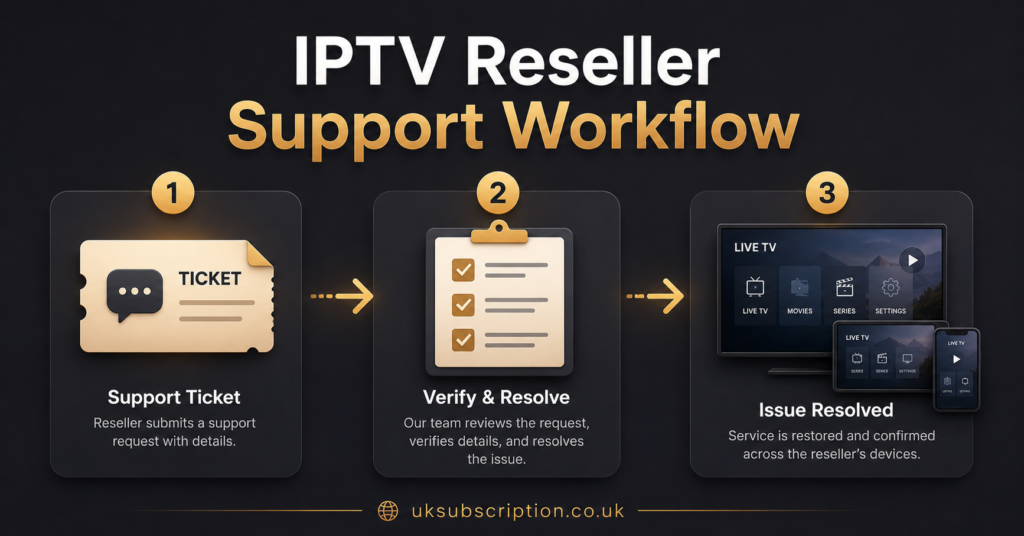
If you’re running an IPTV reseller panel, Samsung and LG customers tend to generate more support tickets than Firestick users, purely because the setup path is less standardised across models and firmware versions. A few practical steps reduce that load:
- Keep a short, brand-specific setup document ready to send, rather than a generic one-size guide.
- Ask for the TV’s exact model number early, since Tizen and webOS versions vary enough to change the correct steps.
- Track which MAC addresses are tied to which customer accounts, since Samsung and LG activations are more device-specific than app-based setups on Android.
Beyond the platform-specific quirks, general reliability still comes down to infrastructure choices and account transparency. The IPTV reseller panel details on any provider’s site are worth checking before recommending a service to your own customers on these device types. For subscribers troubleshooting playback quality after setup is complete, the buffering and freezing troubleshooting guide covers the connection-side issues that setup alone won’t fix. And for anyone specifically prioritising sports content on a new Samsung or LG set, the UK sports IPTV comparison is a useful next read once the basic setup is done.
A Note on What IPTV Actually Is
IPTV is a delivery method, streaming content over an internet connection rather than through satellite or cable infrastructure. It isn’t inherently tied to any one type of content, legal or otherwise. Whether a specific IPTV service is operating within content rights depends on that provider’s own licensing and distribution arrangements, not on how professional its website looks or what payment methods it accepts. It’s worth checking a provider’s terms, business transparency, and refund conditions rather than assuming a slick interface means everything behind it is in order.
Visible FAQ
Do all Samsung and LG TVs support IPTV apps the same way?
No. Newer Tizen and webOS versions generally support IPTV players more easily than older models, and some pre-2018 sets may not support them at all. Checking your TV’s software version before starting saves time.
Can I sideload any IPTV app on a Samsung or LG TV like I would on a Firestick?
Not in the same way. Both platforms are closed ecosystems. Samsung relies on its own app store, and LG’s alternative route requires setting up a developer account through LG’s official process.
Why does my app show no channels after I’ve entered my details?
This is usually down to incorrect portal information, a subscription that hasn’t activated yet, or a mismatched MAC address. Double-checking each detail with your provider resolves most of these cases.
Is a streaming box a better option than trying to get IPTV working directly on the TV?
For some LG models, yes, particularly if the developer mode route isn’t practical. A small Firestick or Android TV box connected by HDMI can be simpler than fighting webOS restrictions.
Does 4K content actually work through IPTV on these TVs?
It can, provided your broadband speed supports it and the provider genuinely offers 4K streams rather than upscaled HD. Wired Ethernet tends to give more consistent 4K playback than WiFi on either platform.
Conclusion
Getting IPTV working comes down to two separate things: following the right steps for your specific TV platform, and choosing a provider whose portal details, support, and terms are actually reliable once you’re connected. To Setup IPTV on Samsung & LG Smart TV successfully, expect the Samsung side to be slightly more straightforward through its app store, and the LG side to sometimes need either a developer account or a small external streaming device. Neither platform is difficult once you know which route applies to your model, but neither is quite as instant as sideloading onto an Android box either. If something doesn’t work first time, it’s almost always a details problem, not a device problem, so start by rechecking your portal information before assuming the app or the TV is at fault.
Setup Checklist
- Confirm your Samsung TV’s Tizen version or your LG TV’s webOS version before choosing an app
- Have your portal URL, username, password, or M3U link ready before installing anything
- Note the exact MAC address or App ID shown by the app on first launch
- Test on wired Ethernet if buffering appears after initial setup
- Check the provider’s refund and support terms before committing to a longer subscription
- Keep a note of which app you installed in case a firmware update removes it later