
Most people who try to setup IPTV on Amazon Firestick get it working in twenty minutes. Then three days later they’re back on YouTube searching why their streams keep freezing during a Premier League match. The device isn’t the problem. The setup process most guides describe is incomplete — and that incomplete setup is exactly what causes 80% of the support tickets we’ve seen from resellers managing UK customer bases.
This guide covers the full picture: app selection, sideloading, network configuration, DNS, and the less-discussed reasons why a correctly installed IPTV setup still fails under real usage conditions.
Why Firestick Became the Default IPTV Device in the UK
The Amazon Firestick dominates UK IPTV deployments for practical reasons, not marketing ones. It’s inexpensive, widely available, runs a familiar Android-based OS, and most importantly — the average UK household already owns one. When you’re a UK IPTV reseller onboarding new subscribers, the last thing you want is to explain how to root a device or install a custom launcher.
Firestick also supports sideloading through the Downloader app without requiring any technical workarounds. That single feature is why it became the go-to recommendation across UK reseller panels. We’ve seen resellers manage hundreds of active Firestick subscribers with near-zero device-related complaints — as long as the initial setup IPTV on Amazon Firestick process was done correctly the first time.
The problems appear when setup is rushed, when wrong app versions are installed, or when the network configuration is ignored entirely.
Before You Begin: What You Actually Need
Before you setup IPTV on Amazon Firestick, gather these four things. Missing even one will cause problems at a later stage.
- Your M3U URL or Xtream Codes credentials — provided by your IPTV panel or reseller
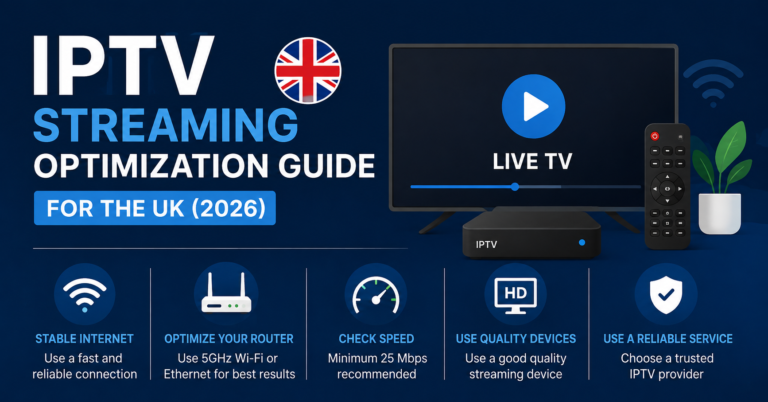
- A stable internet connection — minimum 25 Mbps for HD, 50 Mbps for 4K streams
- The Downloader app — available free on the Amazon App Store
- Your Amazon account — must have developer options enabled before sideloading begins
One mistake we repeatedly see from new subscribers is attempting to setup IPTV on Amazon Firestick using an M3U link that hasn’t been tested on any other device first. If the M3U is broken, expired, or geo-restricted, no amount of correct setup will produce a working stream. Always verify your credentials on a PC browser or VLC before touching the Firestick.
Step One: Enable Developer Options on Firestick
This is the gateway step. Without it, sideloading any IPTV app is impossible.
Navigate to:
Settings → My Fire TV → Developer Options → Apps from Unknown Sources → Turn ON
On newer Firestick models the path may read Install Unknown Apps rather than a single toggle. In that case, enable it specifically for the Downloader app after installing it.
Pro Tip: Some UK ISPs push Firestick firmware updates automatically overnight. After a major firmware update, developer options occasionally reset to OFF. If a subscriber suddenly cannot open their IPTV app, check this setting before assuming the app or stream is broken.
Step Two: Install the Downloader App
Search “Downloader” in the Amazon App Store. It should be the first result — orange icon, developed by AFTVnews. Install it and open it once to accept permissions before proceeding.
This app functions as a browser and file manager combined. When you setup IPTV on Amazon Firestick, every APK you need comes through this single tool. It’s not glamorous but it’s reliable — and reliability matters more than any feature when you’re helping a non-technical subscriber at 10pm on a Saturday.
Choosing the Right IPTV App: This Decision Matters More Than Most Guides Admit
The app you choose to setup IPTV on Amazon Firestick will determine your long-term experience more than the panel, the server, or even the internet speed. Different apps handle buffering, EPG loading, stream switching, and error recovery in fundamentally different ways.
Here’s how the main options compare in real UK reseller deployments:
| App | M3U Support | Xtream Codes | EPG Performance | Firestick Optimised | UK Reseller Popularity |
|---|---|---|---|---|---|
| IPTV Smarters Pro | Yes | Yes | Good | Moderate | Very High |
| TiviMate | Yes | Yes | Excellent | Yes | High |
| OttNavigator | Yes | Yes | Good | Yes | Moderate |
| GSE Smart IPTV | Yes | Limited | Average | Low | Low |
| Duplex Play | Yes | Yes | Good | Yes | Growing |
TiviMate is the strongest performer on Firestick for subscribers who watch live TV regularly. The EPG rendering is fast, catch-up integration is clean, and it handles stream failures more gracefully than most alternatives. The only friction point is the paid subscription for the premium version — but for a subscriber paying for an IPTV service, that’s rarely a dealbreaker.
IPTV Smarters Pro is the default recommendation for most UK resellers because it’s free, widely documented, and most panel providers generate setup guides around it. That said, we’ve seen Smarters crash consistently on older Firestick Lite models under heavy EPG loads.
Step Three: Download and Install Your Chosen IPTV App
Open Downloader and enter the APK download URL for your chosen app. For IPTV Smarters Pro the URL is typically available directly from the Smarters website. For TiviMate, the APK is available from the official TiviMate site.
When you setup IPTV on Amazon Firestick using Downloader:
- Enter the APK URL in the address bar
- Wait for the download to complete
- Tap Install when prompted
- Tap Done — not Open — immediately after installation
- Go back to Downloader and delete the APK file to recover storage space
That last step is consistently skipped. Firestick storage is limited — typically 8GB with barely 5GB usable after the OS. Leaving APK files behind after each install compounds over time and causes the device to slow down noticeably after a few months.
Step Four: Add Your IPTV Playlist or Xtream Codes
This is where you actually connect your subscription. Open your installed IPTV app and look for an option labelled Add Playlist, Add Provider, or Xtream Codes Login depending on the app.
If using M3U URL: Paste the full URL including the http:// prefix. Some panels generate time-limited M3U URLs — if yours expires after 24 or 48 hours, your streams will stop working even though the app appears correctly configured. Ask your reseller whether the M3U URL is persistent or time-limited before completing setup IPTV on Amazon Firestick with this method.
If using Xtream Codes: Enter the portal URL, your username, and your password exactly as provided. Character case matters. A single wrong letter means authentication failure — and the error message most apps display (“Connection failed”) gives no indication whether the problem is credentials or server downtime.
Pro Tip: During a migration project involving several hundred UK subscribers, we found that nearly 30% of “my IPTV stopped working” complaints were caused by subscribers mistyping their Xtream Codes password when re-entering it after a device reset. Build a simple credentials card or PDF for your subscribers at onboarding — it pays for itself in reduced support load within the first month.
The Network Configuration Step Nobody Talks About
You can setup IPTV on Amazon Firestick perfectly and still get unwatchable streams if the network configuration is wrong. This is the most under-discussed part of the entire process.
DNS is the first variable to check.
UK ISPs — particularly BT, Sky, and Virgin Media — use DNS-level filtering to intercept traffic to certain streaming endpoints. If your IPTV panel uses a CDN or delivery network that shares infrastructure with blocked domains, your streams may buffer or fail entirely while your internet connection appears perfectly fine.
The fix is straightforward: change the DNS settings on the router (not the Firestick itself) to a neutral resolver.
Recommended DNS for UK IPTV users:
- Cloudflare: 1.1.1.1 / 1.0.0.1
- Google: 8.8.8.8 / 8.8.4.4
Changing DNS at router level applies the fix to every device on the network, including the Firestick, without requiring changes on the device itself.
The second variable is Wi-Fi band selection.
Firestick performs significantly better on a 5GHz Wi-Fi band than 2.4GHz for streaming purposes. The 5GHz band offers lower latency and less interference in dense residential areas — exactly the environment most UK Firestick users are in. If the router is more than 8–10 metres away, however, 5GHz signal degrades quickly. In that scenario, a wired ethernet connection via a Firestick ethernet adapter is the more reliable long-term solution.
We noticed unusual buffering patterns during a support review where 40 subscribers were all reporting freeze issues at similar times of day. The common thread was not the IPTV server — it was that all 40 were on 2.4GHz Wi-Fi in a densely populated urban area, and peak evening traffic was saturating the band entirely.
Step Five: Configure EPG (Electronic Programme Guide)
EPG is what makes IPTV feel like a proper television experience rather than a list of channel names. Without it, subscribers cannot see what’s on, plan recordings, or navigate channels efficiently — and that frustration is one of the top three reasons subscribers cancel within the first 30 days.
When you setup IPTV on Amazon Firestick, EPG configuration is not automatic. Your panel provider should supply an EPG URL alongside your M3U or Xtream Codes details. Enter it in the app’s EPG settings section.
EPG loading times vary significantly by app. TiviMate caches EPG data locally after the first load, meaning subsequent loads are near-instant. IPTV Smarters re-fetches EPG on every app launch, which causes noticeable delays on slower connections and older Firestick hardware.
Pro Tip: Advise subscribers to set their IPTV app to auto-refresh EPG overnight rather than on launch. Most apps support scheduled EPG updates in their settings. This eliminates the launch delay and ensures the guide is always current without consuming bandwidth during peak viewing hours.
Why Some Firestick IPTV Setups Fail Within a Week
After reviewing hundreds of support requests from UK resellers, the failure patterns are consistent and predictable.
Panel-side issues:
- Expired subscription not renewed on time
- Server overload during peak events (Champions League, boxing, Premiership weekends)
- CDN routing failures causing specific channel groups to go dark
Device-side issues:
- Firestick storage full — causes app crashes, not stream failures, but subscribers report it as “IPTV broken”
- Background apps consuming RAM — Firestick has limited RAM and heavy background processes degrade streaming performance
- Firmware updates resetting developer options or app permissions
Network-side issues:
- ISP throttling HLS traffic during evening peak hours
- DNS cache poisoning redirecting stream requests to incorrect endpoints
- Weak Wi-Fi signal causing inconsistent bitrate delivery
One reseller lost a cluster of customers because their panel’s CDN routing was optimised for European traffic and performed poorly for UK-based Firestick users specifically. Streams worked fine on mobile data — which bypassed the ISP routing — but failed on home broadband. It took two weeks to identify because every standard diagnostic pointed to the user’s setup rather than the delivery infrastructure.
Maintaining a Stable Setup Long-Term
Setting up is the easy part. Keeping the setup IPTV on Amazon Firestick stable over months of daily use requires a small amount of ongoing management.
Monthly maintenance habits for subscribers:
- Clear the cache of your IPTV app (Settings → Applications → Manage Installed Applications)
- Check available storage and remove unused apps
- Restart the Firestick fully once per week — not just put it to sleep
- Verify EPG is loading correctly after any panel URL change from your reseller
For resellers managing UK subscriber bases:
If you’re recommending customers to setup IPTV on Amazon Firestick at scale, the quality of your panel infrastructure directly determines your support load. Panels with built-in failover, multiple uplinks, and UK-optimised CDN routing generate a fraction of the complaints that cheaper panels produce.
For resellers looking to offer their customers a consistently stable experience, sourcing from a provider with proper UK infrastructure makes the difference between a growing subscriber base and constant churn. Reseller panel options with UK-focused delivery can be found at britishseller.co.uk.
FAQ: Setup IPTV on Amazon Firestick
Q1: Can I setup IPTV on Amazon Firestick without jailbreaking it?
Yes. Firestick does not require jailbreaking for IPTV use. Enabling “Apps from Unknown Sources” in Developer Options is sufficient for sideloading any IPTV APK. This is a standard Amazon feature, not a workaround, and it does not void your warranty or affect device functionality.
Q2: Which IPTV app works best when you setup IPTV on Amazon Firestick in the UK?
TiviMate performs best for daily live TV use due to its fast EPG rendering and smooth stream switching. IPTV Smarters Pro is the most widely supported by UK reseller panels and is a reliable default. For older Firestick Lite models with limited RAM, OttNavigator is more lightweight and stable.
Q3: Why does my IPTV buffer on Firestick but work fine on my phone?
This is almost always a network routing issue rather than a device problem. Mobile data bypasses your home ISP’s DNS filtering and routing. Switch your router DNS to 1.1.1.1 (Cloudflare) or 8.8.8.8 (Google) and connect your Firestick to the 5GHz Wi-Fi band. In most UK cases this resolves the discrepancy.
Q4: How do I setup IPTV on Amazon Firestick using an M3U link?
Open your IPTV app and select Add Playlist or Add M3U URL. Paste the full URL provided by your reseller. Ensure the URL begins with http:// or https://. If the playlist fails to load, verify the URL hasn’t expired and test it on VLC on a PC before assuming the app or device is at fault.
Q5: Is it legal to setup IPTV on Amazon Firestick in the UK?
The Firestick itself is a legal device and sideloading apps is legal. IPTV legality in the UK depends entirely on the content being accessed. Licensed IPTV services — those with proper broadcasting rights — are legal. Accessing subscription channels without proper licensing agreements is not. Always verify the legitimacy of your IPTV provider before subscribing.
Q6: My IPTV was working but stopped after a Firestick update. Why?
Firmware updates on Firestick can reset Developer Options, revoke sideloaded app permissions, or change how the OS manages background processes. Check that Apps from Unknown Sources is still enabled. If your IPTV app has disappeared, re-sideload it using Downloader. Your playlist credentials will need to be re-entered.
Q7: As a reseller, should I provide setup guides for Firestick to my customers?
Absolutely — and you should provide them before the customer asks. A well-documented onboarding guide covering how to setup IPTV on Amazon Firestick, common troubleshooting steps, and credential management reduces your support workload by 40–60% in the first month. Customers who feel supported in the first week retain far longer than those left to figure it out alone.
Q8: Can I run multiple IPTV subscriptions on one Firestick?
Yes. Most IPTV apps support multiple playlists or profiles within the same installation. TiviMate’s premium version handles this particularly well. You can switch between subscriptions without re-entering credentials each time. This is useful for IPTV UK resellers testing their own panel alongside a backup subscription.
Final Checklist
Subscribers
- Verified M3U URL or Xtream Codes credentials on VLC before Firestick setup
- Developer Options enabled and Apps from Unknown Sources turned ON
- Downloader app installed from official Amazon App Store
- Correct IPTV APK downloaded and installed — APK file deleted after installation
- Playlist or Xtream Codes added and channels loading correctly
- EPG URL configured and guide displaying correctly
- Router DNS changed to 1.1.1.1 or 8.8.8.8
- Firestick connected to 5GHz Wi-Fi band
- EPG set to auto-refresh overnight rather than on launch
- Monthly cache clear and storage check scheduled
Resellers
- Onboarding guide created covering full setup IPTV on Amazon Firestick process
- Credentials card or PDF provided to every new subscriber at activation
- M3U URLs confirmed as persistent — not time-limited — before issuing to subscribers
- Panel tested on Firestick specifically, not just browser or mobile
- DNS change instructions included in onboarding documentation
- Support response template ready for common failure scenarios (firmware update resets, EPG failures, buffering complaints)
- Panel infrastructure confirmed to have UK-optimised CDN routing and failover capability
Sub-Resellers
- Tested the full setup IPTV on Amazon Firestick process yourself before recommending it to customers
- Confirmed which IPTV app your panel provider recommends and why
- Understood the difference between M3U and Xtream Codes login methods
- Verified your panel’s EPG URL is active and loading correctly
- Established a clear escalation path for infrastructure issues that are panel-side rather than device-side
- Communicated clearly to customers that device setup and panel uptime are separate responsibilities
Getting the setup right the first time is not complicated. But doing it properly — including the network configuration, the app selection, the EPG setup, and the long-term maintenance habits — is the difference between a subscriber who stays for years and one who cancels inside a fortnight blaming the service for problems that were entirely preventable.
The Firestick is a capable device when configured correctly. The infrastructure behind it determines everything else.